
AVD Access to SMB shares Part 2: How To configure access
When designing Azure Virtual Desktop environments, authentication is often discussed at the point where the user signs in. But that is only part of the story. Once the user is inside their AVD session, applications still need to access backend services such as file shares, databases, and line-of-business systems. One common example is an application running on an AVD session host that needs to access an Azure Files share using Kerberos authentication.
In this scenario, the session host, the user identity, Active Directory, Microsoft Entra ID, DNS, networking, SMB, and file share permissions all need to work together. If one part is missing or misconfigured, the result is usually slow logons, access denied errors, failed profile loads, or applications that simply cannot reach the data they depend on.
This is a practical guide to getting that access configured.
Session host must be domain joined and hybrid joined
For AD DS authentication to Azure Files, the cleanest configuration is:
AVD session host = AD DS domain joined + Microsoft Entra hybrid joined
The guidance says AD DS-joined machines can mount Azure file shares using existing AD DS credentials, and Microsoft recommends domain-joining the client machines or VMs so users don’t need to provide explicit credentials each time.
On the session host, validate with:
dsregcmd /status
You want to see something like:
DomainJoined : YES
AzureAdJoined : YES
Also check the AD domain:
echo %USERDOMAIN%
nltest /dsgetdc:yourdomain.local
If the host is only Microsoft Entra joined and not AD DS domain joined, then the design changes. You would be looking at Microsoft Entra Kerberos for Azure Files, not classic AD DS authentication. Azure Files supports AD DS, Microsoft Entra Domain Services, and Microsoft Entra Kerberos, but only one identity source can be enabled on a storage account for SMB identity authentication.
Session host must have line of sight to domain controllers
The AVD session host needs network connectivity to AD DS domain controllers to request Kerberos tickets.
This includes DNS resolution and Kerberos connectivity. Azure Files AD DS authentication expects clients using AD DS to have uninterrupted connectivity to the domain controller, unless explicit credentials are being supplied.
At a practical level, allow traffic from the AVD subnet to your domain controllers for the following:
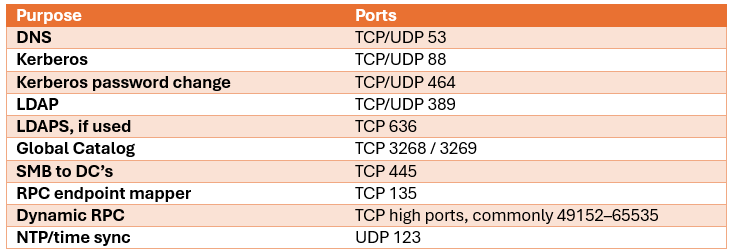
The exact firewall rules depend on your AD design, but the key point is this:
AVD session host must be able to locate and talk to a writable domain controller.
Useful checks:
nltest /dsgetdc:contoso.local
nltest /sc_verify:contoso.local
echo %LOGONSERVER%
Session host DNS must be correct
This is massive. In Kerberos, realm names are very case sensitive.
The session host should use DNS servers that can resolve:
- AD DS domain records
- DC SRV records
- "storageaccount".file.core.windows.net
For AD DS, the session host should normally point to your AD-integrated DNS servers, often your domain controllers or DNS forwarders.
Check domain controller discovery:
nslookup -type=SRV kerberos.tcp.contoso.local
nslookup -type=SRV ldap.tcp.dc._msdcs.contoso.local
Check the Azure Files endpoint:
nslookup "storageaccount".file.core.windows.net
If you use a private endpoint for Azure Files, DNS should resolve the storage account file endpoint to the private IP via the relevant Private DNS zone, typically involving:
privatelink.file.core.windows.net
If DNS resolves to the wrong endpoint, the Kerberos ticket may be correct but the SMB connection can still fail in a very unhelpful, “Windows being Windows” sort of way.
Session host must reach Azure Files over SMB port 445
The AVD session host must be able to connect to the Azure Files endpoint over TCP 445.
Microsoft’s Azure Files SMB mounting guidance states that SMB requires TCP port 445 to be open, and connections fail if TCP 445 is blocked.
Test from the session host:
Test-NetConnection "storageaccount".file.core.windows.net -Port 445
You want:
TcpTestSucceeded : True
If you use private endpoints, test the private endpoint path. If you use public endpoints, make sure NSGs, Azure Firewall, NVA routing, proxy inspection, or firewall rules are not blocking SMB.
Session host must be using the correct UNC path
Use the real Azure Files SMB path:
\\"storageaccount".file.core.windows.net\sharename
Do not casually swap this for a DNS alias unless SPNs and name mapping are deliberately designed for it.
Kerberos tickets are issued for the service name the client is trying to access. For Azure Files AD DS authentication, the expected CIFS service principal name is usually:
cifs/"storageaccount".file.core.windows.net
Microsoft’s AD DS enablement guidance describes registering the storage account with AD DS using a computer account or service logon account, similar to an on-prem Windows file server.
From the session host, test ticket retrieval:
klist get cifs/"storageaccount".file.core.windows.net
Then check tickets:
klist
You should see a ticket for something like:
cifs/"storageaccount".file.core.windows.net
The session host must not be falling back to storage account key auth
If the file share has previously been mapped using a storage account key, Windows may have stored credentials.
Check:
cmdkey /list
Remove old stored credentials for the storage account if present:
cmdkey /delete:"storageaccount".file.core.windows.net
Also disconnect old mappings:
net use
net use \\"storageaccount".file.core.windows.net\sharename /delete
Then reconnect using identity-based auth:
net use \\"storageaccount".file.core.windows.net\sharename
The goal is:
Use Kerberos as the signed-in user. Not the storage account key. Not cached alternate credentials.
Kerberos encryption must be compatible
Azure Files AD DS authentication recommends Kerberos with AES-256 encryption. Microsoft notes that Kerberos authentication is available with AD using AES-256, and their troubleshooting guidance shows verifying that the ticket for cifs/<storage-account-name>.file.core.windows.net uses AES-256.
From the session host:
klist purge
klist get cifs/"storageaccount".file.core.windows.net
klist
Look for:
KerbTicket Encryption Type: AES-256-CTS-HMAC-SHA1-96
If you see RC4 or cannot get a ticket, check the AD object representing the storage account and its supported encryption settings.
Time sync must be healthy
Kerberos depends on time. If the AVD session host, domain controllers, and identity path are out of sync, Kerberos fails.
Check time:
w32tm /query /status
w32tm /query /source
Useful fix/test commands:
w32tm /resync
For domain-joined session hosts, time should normally follow the domain hierarchy. For anyone who has been deploying AVD for a while, you'll know configuring time on session hosts is always something that comes up.
AVD SSO configuration may be required for the logon experience
This is slightly separate from Azure Files access, but important.
For AVD session hosts that are Microsoft Entra joined or Microsoft Entra hybrid joined, Microsoft recommends enabling SSO using Microsoft Entra authentication.
For hybrid joined session hosts, Microsoft also says a Kerberos Server object is required to complete authentication to a domain controller when using this SSO model.
So for a smooth AVD sign-in experience, configure:
- Host pool Microsoft Entra SSO enabled
- RDP property: enablerdsaadauth = 1
- Kerberos Server object created if AD DS is part of the environment
- Conditional Access reviewed
This helps the AVD session sign-in side. The Azure Files access still depends on the Kerberos ticket to the Azure Files CIFS SPN.
The app must run under the right identity
The session host can be perfectly configured, but the app can still fail if it runs under the wrong context.
If the app runs as the user
This is the normal and preferred flow:
- User logs into AVD
- App runs as user
- App accesses \\"storageaccount".file.core.windows.net\share
- Kerberos ticket is requested for the user
- Azure Files checks user/group permissions
- Good (yes, I actually wrote good!)
If the app runs as LocalSystem
Then network access happens as the session host computer account:
CONTOSO\AVD-SH-01$
That often causes access denied unless the computer account has permissions.
If the app runs as a service account
Then the service account needs access:
CONTOSO\AppServiceAccount
So check what identity the app actually uses.
From the app process context, or a test command prompt running as the same identity:
whoami
klist
dir \\\sharename
Do not use IP address access
Do not access Azure Files like this:
\\10.10.10.5\share
Kerberos needs the service name. Use:
\\"storageaccount".file.core.windows.net\share
Otherwise Windows may not request the correct CIFS Kerberos ticket.
Session host validation script
Run this from the AVD session host, ideally inside the affected user session:
$StorageAccount = "storageaccount"
$Domain = "contoso.local"
$Share = "sharename"
$FileEndpoint = "$"storageaccount".file.core.windows.net"
$CifsSpn = "cifs/$FileEndpoint"
Write-Host "=== Device Join State ==="
dsregcmd /status | findstr /i "DomainJoined AzureAdJoined TenantName"
Write-Host "`n=== Domain Controller Discovery ==="
nltest /dsgetdc:$Domain
Write-Host "`n=== Secure Channel ==="
nltest /sc_verify:$Domain
Write-Host "`n=== DNS Resolution ==="
Resolve-DnsName $FileEndpoint
Write-Host "`n=== SMB Port 445 Test ==="
Test-NetConnection $FileEndpoint -Port 445
Write-Host "`n=== Current User ==="
whoami
whoami /groups
Write-Host "`n=== Kerberos Ticket Test ==="
klist purge
klist get $CifsSpn
klist
Write-Host "`n=== Share Access Test ==="
dir "\\$FileEndpoint\$Share"
Replace:
storageaccount
contoso.local
sharename
with your real values.
Minimum session host checklist
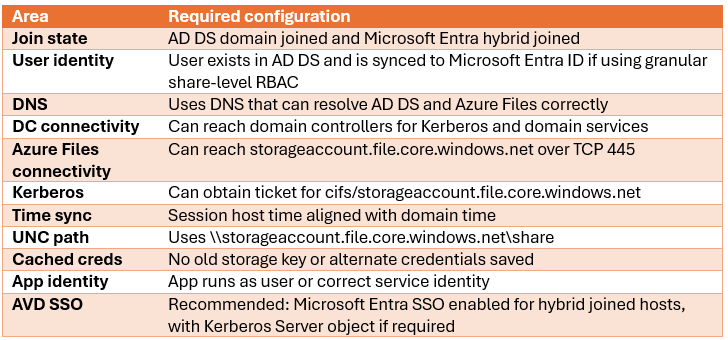
…and finally
The big gotcha is that hybrid joined alone is not the magic bit. For AD DS-authenticated Azure Files, the session host must have proper AD DS Kerberos line of sight, proper DNS, and working SMB connectivity.